
Back

knowledge base

Subscription & Billing

Subscription Plans

Workbloom offers multiple subscription plans designed to support organisations with different reward programme requirements, transaction volumes, and reporting needs.

Each subscription plan provides access to specific platform features, reward options, reporting capabilities, and usage limits.

Available Plans

  • Essentials (Free) Plan

The Essentials plan is designed for testing, pilot programmes, and organisations with lower transaction volumes.

Features include:

  • Complete voucher catalogue
  • Prepaid Mastercard rewards (EUR, GBP, and USD)
  • Email reward delivery
  • Overview dashboard
  • Customer service via email
  • Up to 200 transactions per year
  • Maximum card load of 200 EUR / GBP / USD per card
  • 2% voucher top-up fee
  • 2% prepaid card top-up fee

  • Elevate Plan

The Elevate plan is designed for organisations that want to automate employee recognition and milestone programmes.

Everything in the Essentials plan, plus additional features include:

  • Advanced reporting
  • Tailored communication and recognition
  • Milestone builder and scheduler
  • Up to 500 transactions per year
  • Maximum card load of 500 EUR / GBP / USD per card
  • 1.5% voucher top-up fee
  • 1.5% prepaid card top-up fee

  • Amplify Plan

The Amplify plan is designed for larger reward programmes and organisations requiring enhanced reporting and integration capabilities.

Everything in the Elevate plan, plus additional features include:

  • Tax compliance reporting
  • PeopleXD integration
  • Up to 5,000 transactions per year
  • Maximum card load of 1,500 EUR / GBP / USD per card
  • No voucher top-up fee
  • No prepaid card top-up fee

  • Enterprise Plan

The Enterprise plan is designed for organisations requiring advanced governance, auditing, and custom integration capabilities.

Enterprise features may include:

  • Multi-entity governance
  • Audit logs
  • Custom integrations
  • Enterprise-level controls and support
  • Custom transaction limits
  • Custom pricing arrangements

For more information, also visit our Pricing page.

Tips

  • Review expected transaction volumes before selecting a plan.
  • Consider future programme growth when comparing plans.
  • Evaluate reporting and integration requirements in advance.
  • Compare transaction limits and reward restrictions before upgrading.

Common Mistakes

  • Selecting a plan based solely on subscription cost.
  • Overlooking annual transaction limits.
  • Ignoring card load restrictions when planning reward programmes.
  • Assuming all plans provide the same reporting functionality.

Related Articles

Each subscription plan includes different levels of functionality, reporting, and reward flexibility. Understanding these differences helps organisations select the most appropriate subscription level.

Key Feature Areas

  • Reward Availability

All plans include:

  • Complete voucher catalogue
  • Prepaid Mastercard rewards (EUR, GBP, and USD)
  • Email delivery of rewards

  • Reporting Capabilities

Reporting availability varies by plan:

  • Essentials – Overview Dashboard
  • Elevate – Advanced Reporting
  • Amplify – Advanced Reporting and Tax Compliance Reporting
  • Enterprise – Custom reporting capabilities

  • Integration Availability

Integration capabilities vary by plan:

  • Essentials – No integrations
  • Elevate – No integrations
  • Amplify – Standard integration with PeopleXD
  • Enterprise – Custom integrations available

  • Annual Transaction Limits

Annual transaction limit varies by plan:

  • Essentials - up to 200
  • Elevate - up to 500
  • Amplify - up to 5,000
  • Enterprise - Custom

  • Maximum Prepaid Card Value

Maximum card top-up value varies by plan:

  • Essentials - 200 EUR / GBP / USD
  • Elevate - 500 EUR / GBP / USD
  • Amplify - 1,500 EUR / GBP / USD
  • Enterprise - Custom

Tips

  • Compare reporting requirements before selecting a plan.
  • Review integration needs if external systems are involved.
  • Consider both transaction volume and reward value requirements.

Common Mistakes

  • Focusing only on pricing.
  • Ignoring future growth requirements.
  • Selecting a plan without reviewing reward limits.

Related Articles

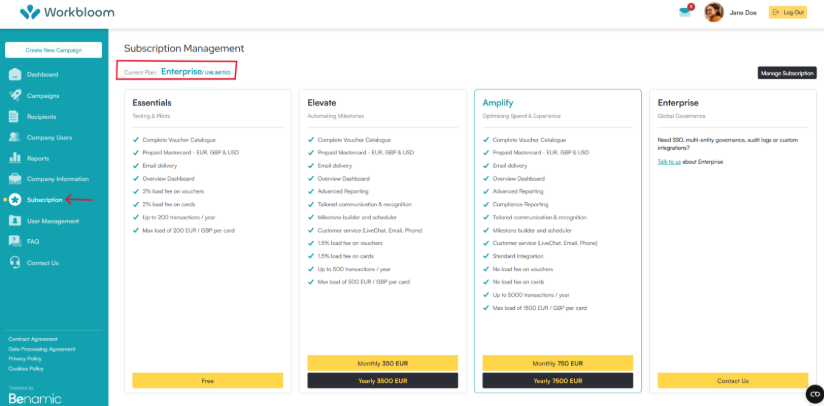
Administrators can review their current subscription at any time through the Subscription Management section. The subscription page provides information about the active plan and available subscription options.
Step-by-Step Instructions

  • View Your Current Subscription

  1. Sign in to your Workbloom account.  
  1. Navigate to Subscription.  
  1. Review the Current Plan displayed at the top of the page.  
  1. Review the features and limits associated with the active subscription.  
Subscription Management page with a red arrow pointing to Subscription in the sidebar, and a red box around Current Plan

The subscription page may also display alternative plans and available upgrade options.

  • Information Available

Subscription information may include:

  • Current plan name
  • Available features
  • Transaction limits
  • Card value limits
  • Voucher top-up fees
  • Card top-up fees

Tips

  • Review subscription details periodically.
  • Verify plan limits before launching large campaigns.
  • Compare available plans as organisational needs evolve.

Common Mistakes

  • Assuming all features are available on the current plan.
  • Overlooking transaction limitations.
  • Failing to review plan restrictions before creating campaigns.

Related Articles

Administrators may upgrade their subscription when additional features, reporting capabilities, integrations, or higher transaction limits are required. Upgrading may provide immediate access to additional functionality depending on the selected plan.

Step-by-Step Instructions

  • Upgrade Your Subscription

  1. Sign in to your Workbloom account.  
  1. Navigate to Subscription.  
  1. Review available subscription plans.  
  1. Compare features, limits, and pricing.  
  1. Select the desired subscription plan.  
  1. Follow the on-screen instructions to complete the upgrade.  

  • Before Upgrading

Review:

  • Annual transaction requirements
  • Card value limits
  • Reporting requirements
  • Integration needs
  • Applicable fees

Tips

  • Compare plans carefully before upgrading.
  • Consider future organisational growth.
  • Review reward programme requirements before selecting a higher tier.

Common Mistakes

  • Upgrading without reviewing included features.
  • Selecting a plan based only on transaction limits.
  • Overlooking integration and reporting requirements.

Related Articles

The Enterprise plan is designed for organisations that require advanced governance, auditing, custom integrations, and enterprise-scale reward programmes.

Enterprise subscriptions are arranged through consultation with the Workbloom team.

When to Contact Sales

You may wish to discuss an Enterprise plan if your organisation requires:

  • Multi-entity governance
  • Audit logging capabilities
  • Custom integrations
  • Enterprise reporting requirements
  • Custom transaction limits
  • Large-scale reward programmes

  • Requesting Enterprise Information

  1. Navigate to Subscription (or Contact Us directly).  
  1. Review the Enterprise plan section.  
  1. Select Contact Us or the available sales contact option.  
  1. Provide information about your organisational requirements.  
  1. Discuss subscription options with the Workbloom team.  

Tips

  • Prepare information about expected transaction volumes.
  • Identify any integration requirements before contacting sales.
  • Consider future expansion and governance requirements.

Common Mistakes

  • Requesting enterprise functionality without documenting business requirements.
  • Overlooking integration requirements during initial discussions.
  • Assuming Enterprise features are automatically included in other subscription tiers.

Related Articles

Managing Subscription Details

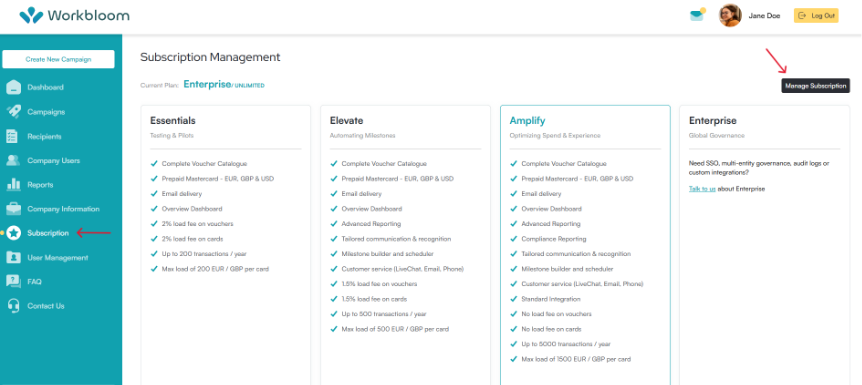
Workbloom uses Stripe to manage subscription billing, payment methods, and invoices. Administrators can access the subscription management portal directly from the Subscription page.
Step-by-Step Instructions

  1. Sign in to your Workbloom account.  
  1. Navigate to Subscription.  
  1. Select Manage Subscription.  
Subscription Management page with a red arrow pointing to Subscription in the sidebar and a red arrow pointing to the Manage Subscription button

  1. The Stripe subscription portal will open.  

Workbloom partners with Stripe for simplified billing.

Within the portal, you can:

  • Add or update payment methods.  
  • Update billing information.  
  • View invoice history.  
  • Manage subscription-related billing details.  

Tips

  • Ensure billing information is kept up to date.  
  • Use a company payment method whenever possible.  
  • Review subscription details periodically.  

Common Mistakes

  • Attempting to update billing information without appropriate permissions.  
  • Using an expired payment card.  
  • Ignoring billing notifications.  

Related Articles

Payment methods used for subscription billing can be managed through the Stripe subscription portal.

Step-by-Step Instructions

  • Add a Payment Method

  1. Open Manage Subscription.  
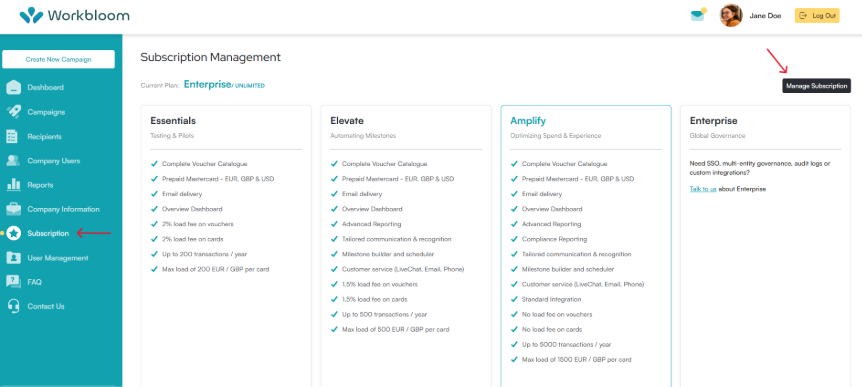
Subscription Management page with a red arrow pointing to Subscription in the sidebar and a red arrow pointing to the Manage Subscription button

  1. Locate the Payment Method section.  
  1. Select Add Payment Method.  
Payment Method section with an Add payment method button

  1. Enter the required payment details.  
  1. Save the payment method.  

The new payment method may be used for future subscription charges.

  • Update an Existing Payment Method

  1. Open the Stripe subscription portal.  
  1. Navigate to the payment method section.  
  1. Update the payment details if available.  
  1. Save your changes.  

Tips

  • Keep payment methods current to avoid billing interruptions.  
  • Verify card expiration dates regularly.  
  • Use payment methods authorized for recurring transactions.  

Common Mistakes

  • Entering incorrect card information.  
  • Using a card that has expired.  
  • Forgetting to update payment details after card replacement.  

Related Articles

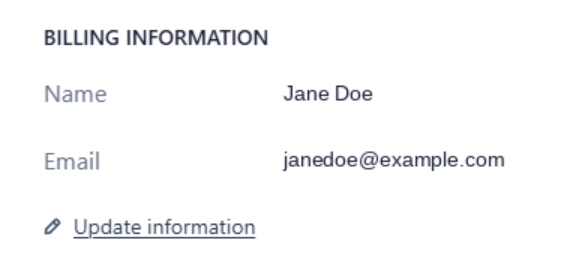
Billing information identifies the organisation responsible for subscription payments and invoice records.
Step-by-Step Instructions

  • Update Billing Information

  1. Open Manage Subscription.  
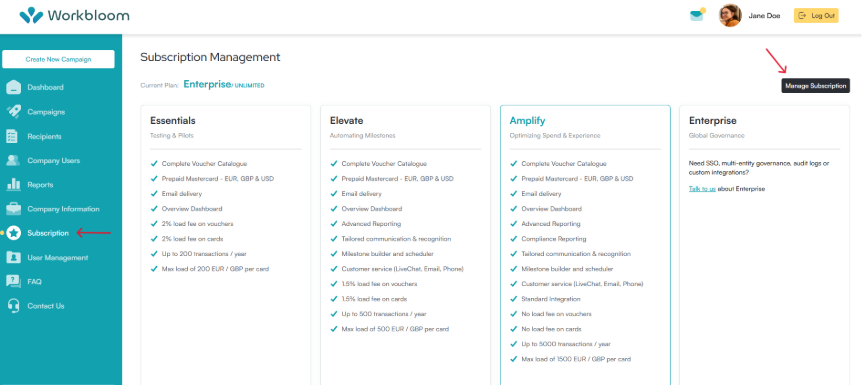
Subscription Management page with a red arrow pointing to Subscription in the sidebar and a red arrow pointing to the Manage Subscription button

  1. Locate the Billing Information section.  
  1. Select Update Information.  
Billing Information section with Name and Email fields, and an Update information link

  1. Review the existing details.  
  1. Update the required information.  
  1. Save your changes.  

Billing information may include:

  • Billing contact name  
  • Billing email address  
  • Other billing details available in the subscription portal

Tips

  • Keep billing contacts up to date.  
  • Use a monitored email address for billing communications.  
  • Review billing information after organisational changes.

Common Mistakes

  • Using an inactive email address.  
  • Leaving outdated billing contacts in place.  
  • Forgetting to save changes.  

Related Articles

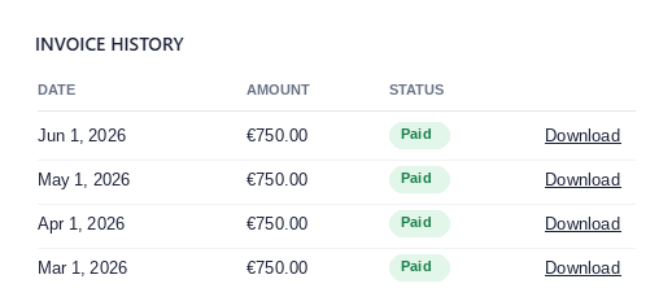
Invoice history provides access to previous subscription invoices and billing records. If no invoices have been generated yet, the Invoice History section may display "No invoice history."
Step-by-Step Instructions

  • View Invoices

  1. Open Manage Subscription.  
Subscription Management page with a red arrow pointing to Subscription in the sidebar and a red arrow pointing to the Manage Subscription button

  1. Locate the Invoice History section.  
  1. Review available invoices.  
  1. Open individual invoices if additional details are required.  
Invoice History table

Invoice history may include:

  • Invoice dates  
  • Subscription charges  
  • Payment status  
  • Billing records

Tips

  • Review invoices regularly for accuracy.  
  • Retain invoice records for financial reporting.  
  • Verify subscription charges against your active plan.  

Common Mistakes

  • Assuming invoices are generated immediately after plan changes.  
  • Not reviewing billing records periodically.  
  • Overlooking failed payment notifications.

Related Articles

Subscription charges are processed using the payment method associated with the account. Renewal billing follows the subscription period selected during plan purchase.

Tips

  • Ensure a valid payment method is available before renewal.  
  • Monitor billing notifications and payment confirmations.  
  • Review subscription changes before the next billing cycle.  

Common Mistakes

  • Allowing payment methods to expire.  
  • Ignoring payment failure notifications.  
  • Assuming plan changes apply retroactively.  

Related Articles