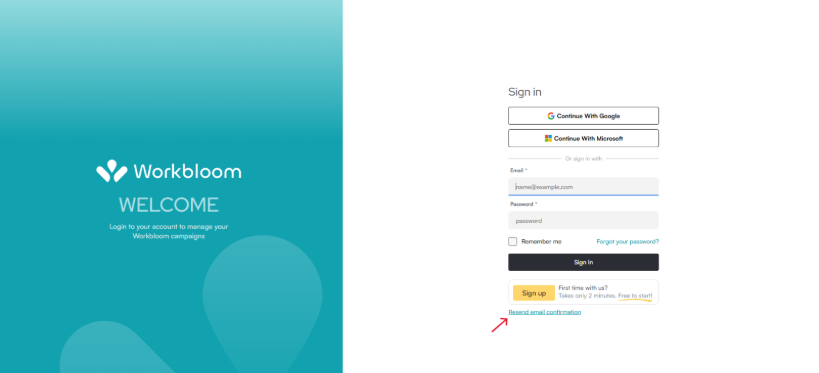
Creating a Workbloom account is the first step toward setting up your organisation and sending employee rewards. You can create an account using your email address or sign in using a supported provider such as Google or Microsoft.
Once registration is complete, you will need to verify your email address and complete the company onboarding before your account can be reviewed.
Step-by-Step Instructions
Create an account using email
- Go to the Workbloom Sign Up page.
- Select Sign Up.
- Enter the required information:
- Email
- Password
- Confirm Password
- Click 'Sign Up'.
After submitting your information, Workbloom will send a verification email to the address you provided.
Create an account using Google or Microsoft
You can also register using a Google Account or a Microsoft Account.
- Select Continue with Google or Continue with Microsoft on the Sign Up page.
- Complete authentication with your provider.
- Follow the onboarding process after login.
Password Requirements
When creating an account, passwords must include:
- At least 8 characters
- One uppercase letter
- One lowercase letter
- One number
- One special character
Using a strong password helps protect your account and company information.
Tips
- Use a company email address whenever possible to simplify account verification and approval.
- Create a strong password that meets all security requirements.
- Verify your email address promptly to avoid delays in the onboarding process.
- Complete company onboarding immediately after registration to speed up account approval.
Common Mistakes
- Using an incorrect email address - If your email address is entered incorrectly, you will not receive the verification email.
- Weak password selection - Passwords that do not meet security requirements will not be accepted.
- Forgetting to verify the email - Your account setup cannot continue until your email address has been confirmed.
Related Articles
- Verifying Your Email Address
- Completing Company Onboarding
- Account Approval Process
- Understanding Account Statuses